Custom Virtual Staging: Photo Rules That Make Every Photo Yours
Tell it your preferences once — globally and per room — and stop re-fighting the same battle on every listing.
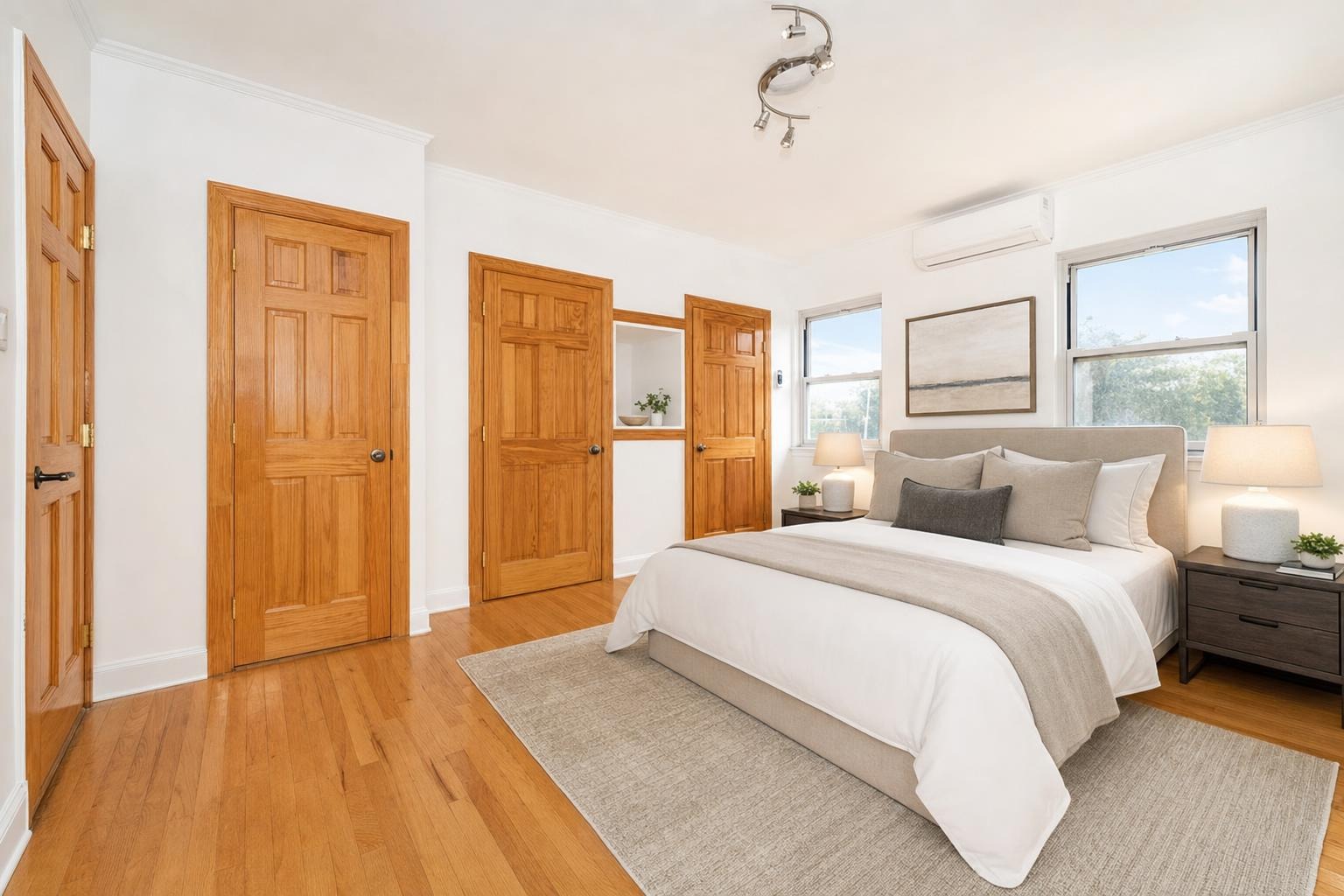
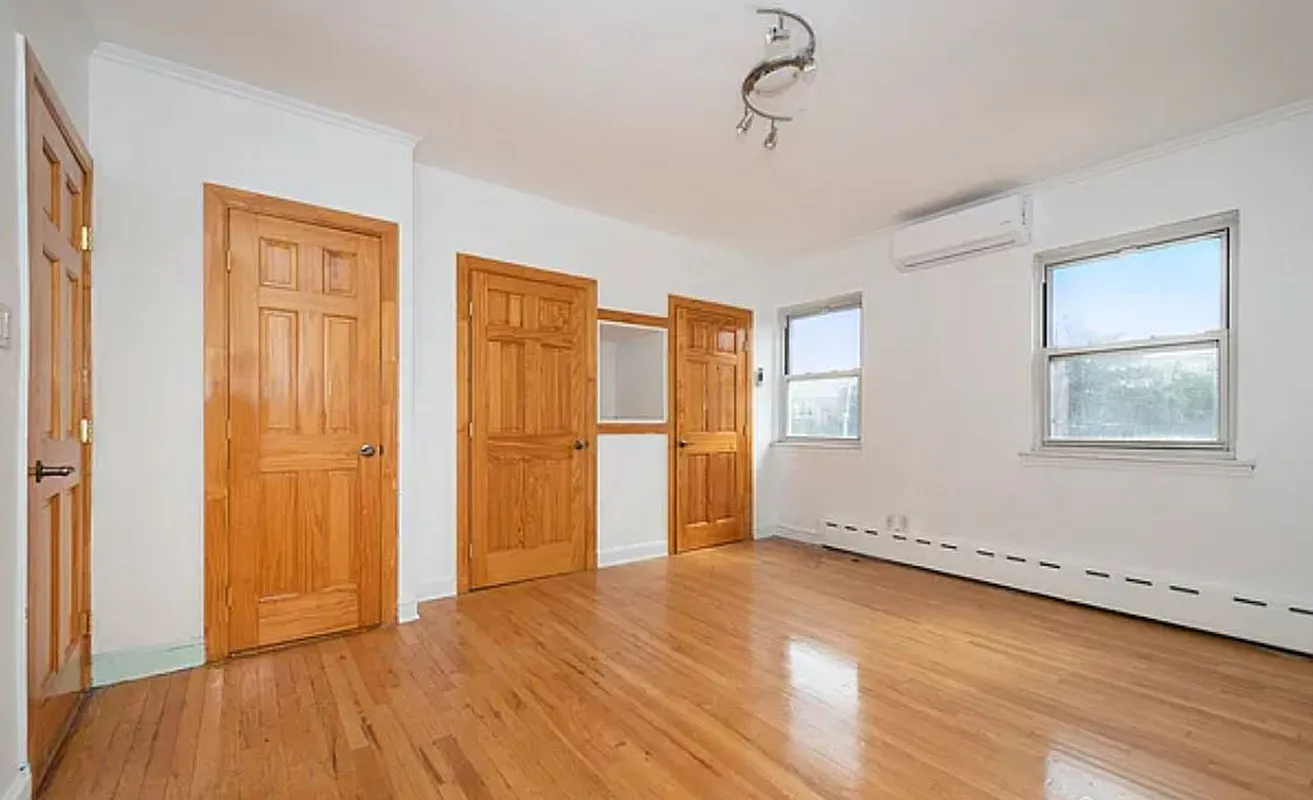 after · staged
before
after · staged
before
The short version
A photo rule is a standing plain-English request saved to your account and applied to every photo afterwards, so you stop re-fighting the same battle on every listing. It works per room as well as globally, because your taste is not one setting, and you can pin a style to a room too.
Every AI staging tool on the market gives you a style dropdown. Modern, Scandinavian, Farmhouse, pick one, done. Which means every listing staged with that tool looks like every other listing staged with that tool, and if there's something you specifically don't want in your photos, your only option is to keep not-getting-it, one photo at a time, forever.
That's the gap photo rules close. You write down what you want once, and it applies to every photo you make after that — on your phone and in the browser, on this listing and the next one.
The complaint that started it
A customer rated three photos one star. Same reason all three times: the model kept adding potted plants to his bedrooms. He wasn't asking for a credit and he didn't want a lecture about prompts. He wanted the tool to stop putting plants in his bedrooms.
That's a completely reasonable thing to want, and it exposed something dumb about how staging tools work: they treat every photo as if it's the first photo you've ever made. The tool learns nothing about you between one listing and the next. So you re-explain yourself, forever, or you accept the house style.
What photo rules are
A photo rule is a standing request, written in plain English, saved to your account. It gets applied to every photo you generate from then on. There are two kinds.
An "always" rule applies to everything you make:
Always
Never add plants or greenery. Keep the palette neutral. No busy patterns.
A room rule applies only when you're staging that kind of room — and this is the part that actually matters, because nobody's taste is one single thing.
Why it has to be per room
Your aesthetic isn't a single setting. The way you want a primary bedroom to feel is not the way you want a kitchen to read, and neither one has anything to do with what should happen on the front of the house. A tool that only lets you set one global preference forces you to write the mushy average of everything you want, which produces the mushy average of everything you want.
So rules are scoped by room. In practice that looks like:
- Bedroom. Warm wood tones, low platform bed, no plants, nothing on the ceiling.
- Kitchen. Clear counters, stainless appliances, no fruit bowls, no open cookbooks.
- Living room. One sofa and two chairs, no gallery wall, keep the rug light.
- Home exterior. Never invent patio furniture that isn't there. Just clean it up.
Set those four once and you've described your style more precisely than any dropdown could. A bedroom photo picks up the bedroom rule and the always rule. A kitchen photo picks up the kitchen rule and the always rule — and none of your bedroom preferences leak into it.
Pin a style to a room
The same logic goes for the style picker itself. If your bedrooms are always Scandinavian and your living rooms are always Modern, you shouldn't have to remember that on every upload. Pin a style to a room and it's pre-selected the moment you choose that room. It's a default, not a cage — change it on any photo you want, and your choice wins for that photo.
How to write a rule that actually works
Rules are free text, so they're easy to get wrong in one specific way: being vague. "Make it nice" tells the model nothing it didn't already assume. What works:
- Name the thing you don't want. "No plants" is worth more than three sentences about your general philosophy of interiors.
- Be concrete about materials and color. "Warm oak, cream, black metal" beats "cozy but modern."
- Keep it short. A couple of clauses. A rule that reads like a design brief starts to compete with the photo itself.
- Put the universal stuff in "always," the specific stuff in the room. If it only applies to bathrooms, don't make every photo carry it.
What rules will not do
Worth being straight about the limits, because they're deliberate.
Rules guide what gets added and how it's styled. They do not override the job you picked, and they will not remove real things from your room. If there's an actual plant sitting in the actual corner of the actual room, "no plants" will not rip it out of your photo — that would be editing reality, not staging it, and that's what the Declutter tool is for. In Enhance mode, where nothing is added or removed at all, a rule about furniture has nothing to act on and stays quietly out of the way.
Your real walls, windows, and floors stay yours regardless. That's the line the whole product is built on, and a saved preference doesn't get to cross it.
Where to set them
Settings → Photo rules in the web app today, and in the iOS and Android apps in the next update. There's an "Always" tab and a tab for each room type: write the rule, pin a style if you want one, hit save.
Rules live on your account, so once you've added your email they follow you between the browser and your phone — and they apply to batches too, so a twelve-photo listing picks up the right rule for each room as it goes. You can change them any time, and they take effect on your very next photo. If a rule isn't landing the way you meant it, tighten the wording and run one more.
Not sure it took?
Stage one room, look at the result, and adjust the rule's wording before you run the rest of the listing. And if a photo genuinely misses: tell us within 24 hours and we'll re-run it free with your feedback. If it still misses, we credit the photo back.
The bottom line
Preset staging produces preset listings. If you have actual taste — a look you use, a thing you never want in frame, a style you always pick for bedrooms — you should be able to say it once and have the tool remember. That's all photo rules are: your standing preferences, applied to every photo, scoped to the room they belong to, so the output looks like your listings instead of everyone's.
Stylst stages any room or yard in about 30 seconds, keeps your real layout, and costs about a dollar a photo, pay-as-you-go. Set your rules once in Settings and every photo after that comes back in your style.
Questions people actually ask
What is a photo rule?
A standing instruction written in plain English and saved to your account, like never add fake plants or no wall art. Once saved it applies to every photo you generate afterwards without being retyped. Most tools make you re-enter your preferences on each image, which is how the same unwanted thing keeps coming back.
Why do photo rules need to work per room?
Because taste is not a single setting. What you want in a bedroom is often the opposite of what you want in a kitchen, and a global rule that fixes one breaks the other. Rules apply per room as well as globally, and you can pin a specific style to a specific room so the picker starts where you want it.
How should I write a photo rule so it actually works?
Be concrete. Vague rules are the main failure mode, because a rule like keep it tasteful gives the model nothing to act on. Name the specific thing you do or do not want, and where possible say what you want instead of what you do not, since naming a replacement lands more reliably than a prohibition alone.