Let’s get your photo right.
Refine a detail, find your photos, or get a hand from our team.
Want something
changed?
You don’t need to start again. Point to a detail and tell us what you have in mind.
- Open your photoFind your result in My photos.
- Choose “Change this photo”The same action is available in the app and on the web.
- Tap a detail. Describe your change.Add a pin for each spot, or describe a change to the whole photo. Review your request and submit.
Unlimited revisions on newly paid or unlocked photos. Same original photo and tool. No expiry. Unlock a free watermarked preview first.
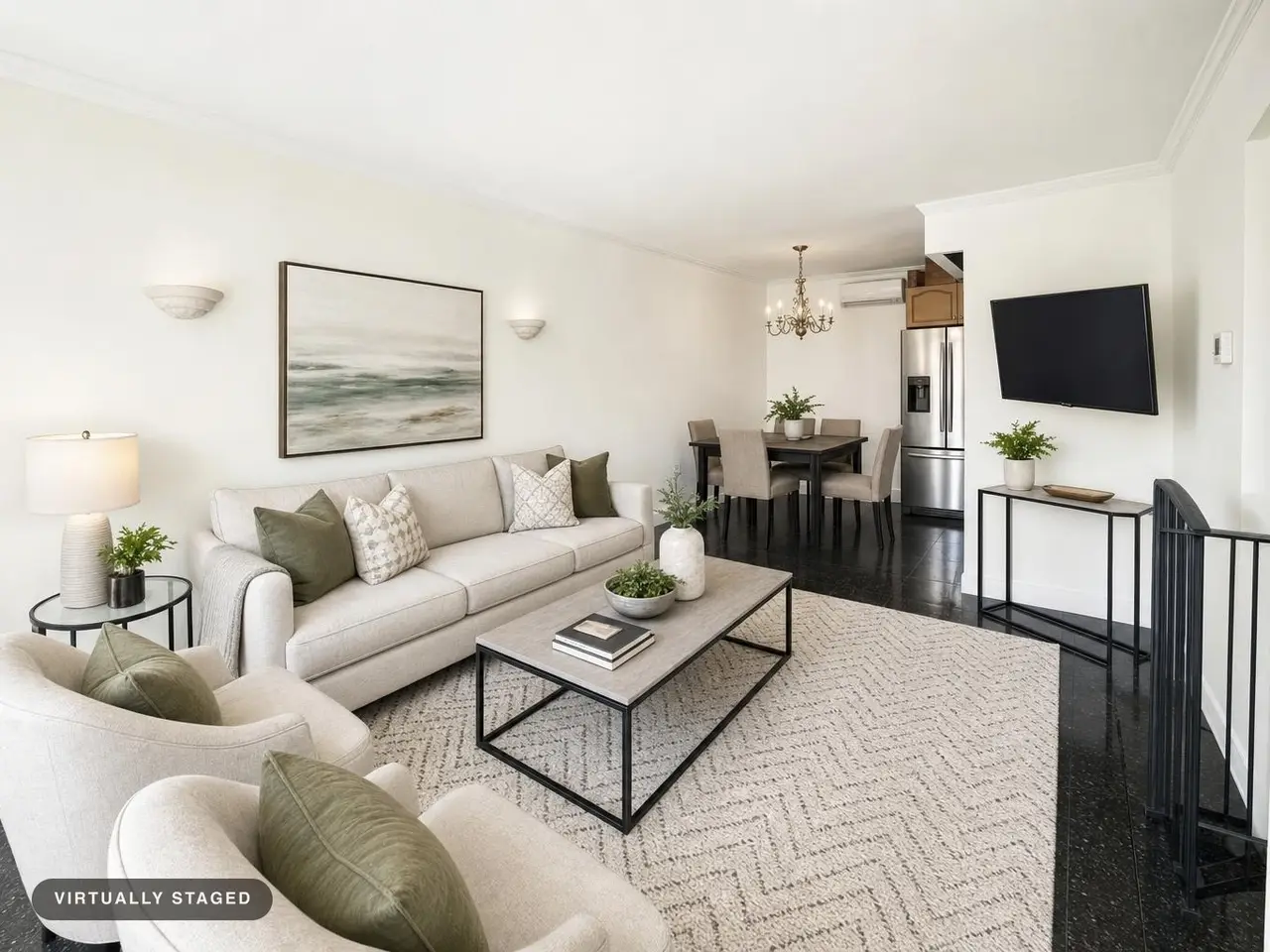
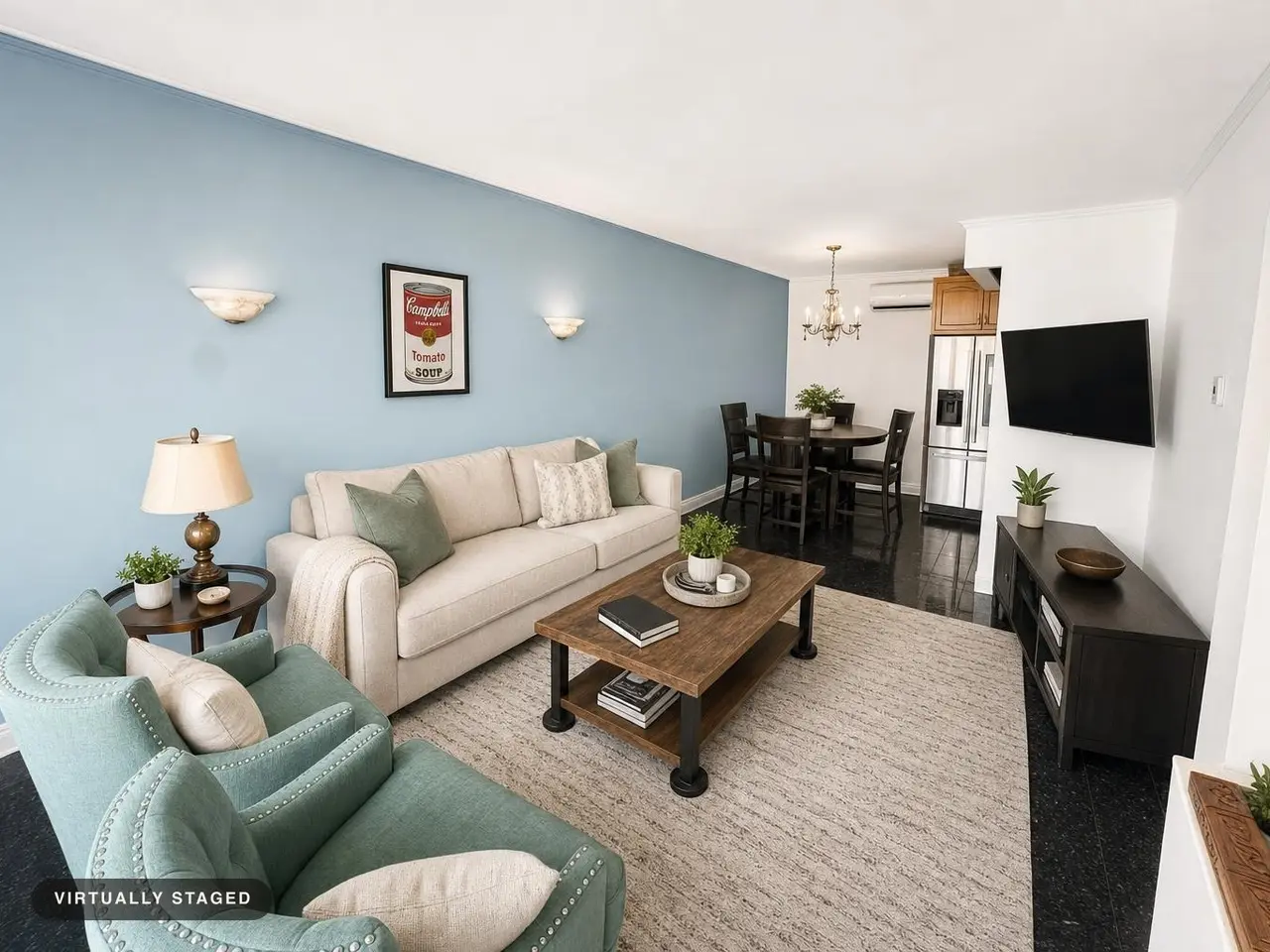 Before the revision
A real staged photo. Choose “The requests” to see what was asked for.
1 · Artworkmake this the cambells soup painting
2 · Wallmake this wall blue
Real example, original request wording. The wall color was explicitly requested in this example; ordinary staging preserves the property.
How it works
Purchases & access
Do I need an account? On the web, use your email to save and access your photos and credits. Sign in with the link or code we send—there is no password. In the mobile app, you can start without signing in; add your email in Settings to make your photos and credits recoverable on another device.
I bought credits but don't see them. On the web, return to Stylst after checkout and check that you are signed in with the email you used. In the app, reopen Stylst on the device where you purchased. If your balance is still missing, email us with your receipt so we can check the purchase. Please do not buy the same pack again to fix a missing balance.
I switched phones or browsers. Sign in with the same email to recover the photos and credits saved to your account. For mobile credits that were not saved to an email, use “Move / restore credits” in Settings while you still have the original device. If you no longer have access, contact us with your purchase receipt.
Do credits expire? Plan photos roll over while you're subscribed, and you have 90 days to use what's left if you stop. Purchased credits stay valid as long as you use Stylst: after 12 months with no photo and no purchase, the remaining balance lapses. We email you 30 days and 7 days before that ever happens, and credits bought before this policy never expire.
Photo changes & results
What if I don't love a result? Tell us what missed within 24 hours — the fastest way is the rating right under your photo. We'll re-run it free with your feedback, and if it still misses, we credit the photo back to your balance. The guarantee is fulfilled in photo credits; cash refunds for purchases follow Apple, Google, or Stripe policies.
Can I get a refund? Mobile purchases are handled by Apple and Google — request refunds through them. Web purchases are handled by Stripe; email us.
What kind of photo works best? Stylst stages what it can see, so the shot itself does half the work. Six things make a big difference: stand in the doorway and back up as far as you can, so we can see the room corner to corner. Keep the lens clear — anything right in front of the camera reads as part of the room, so step around the plant, the sculpture, the chair. Lights on, blinds open; we can lift a photo, but only what made it into the shot. Hold the camera level, about chest height — straight walls in, straight walls out. One room per photo: shoot each space on its own and upload them all at once, and we'll run the whole listing as a batch. And don't tidy for staging — furnished, empty or messy are all fine, because clearing the room is our job, not yours. If a photo you pick is likely to give us trouble, we'll say so before you spend anything — you can always stage it anyway.
The result changed my room's layout. Stylst is tuned to preserve walls, windows, and floors. If something looks off, use the rating beneath the result and tell us which detail changed. Your feedback stays with the photo so we can help correct it.
Can I change a photo after it's generated? Yes. Every newly paid or unlocked photo includes unlimited revisions, with no expiry. Open the photo and tap Change this photo to refine furniture, style, lighting, or details using the same original photo and tool. One revision can run at a time per photo. A different photo or tool starts a new generation, with its price shown before submission. Free watermarked previews must be unlocked first. Eligible recent photos are included too; older photos retain their existing revision allowance.
Can I change just one thing in the photo? Yes — point at it. On the change screen, tap the spots you want handled differently (up to eight) and each tap asks what should happen there: take this out, change this, keep this, or more like this. Add a few words to name the object and it gets handled specifically, which is the whole point: a room can hold four plants, and "remove the plant" doesn't say which one. More on how that works.
Can I upload a collage or several photos in one image? No — Stylst stages one photo of one room per image, so a montage or grid won't come out usable. To do a whole listing, select multiple files at once and they run as a batch, each staged on its own.
Still need a hand?
For a problem with a result, use the rating beneath that photo so your feedback stays with it. You can also email team@stylst.app. Include the photo or its link and what you need help with.