How to Change One Thing in an AI-Staged Photo — Just Point at It
The staging came back right except for one object. Saying which one in words is the hard part — so stop describing it and tap it.
The short version
A text box is fine for changing a whole photo and useless for changing one object in it. Tap the spot instead, say what should happen there, and the request becomes the specific object you meant rather than a category that appears four times in the frame.
Here is the moment this feature exists for. The staging lands: the room reads well, the furniture makes sense, the light is right. And there is one thing in the frame you do not want. A plant. A piece of wall art. A rug two sizes too big.
Changing an AI-staged photo has been possible in Stylst for a while — you describe what you want different and it re-works the photo from your stored original, with every version kept. That handles "make it Coastal" or "warmer light" perfectly well, because those apply to the whole photo.
It handles "not that one" badly. And "not that one" is most of the notes people actually have.
Location is the hardest thing to say in words
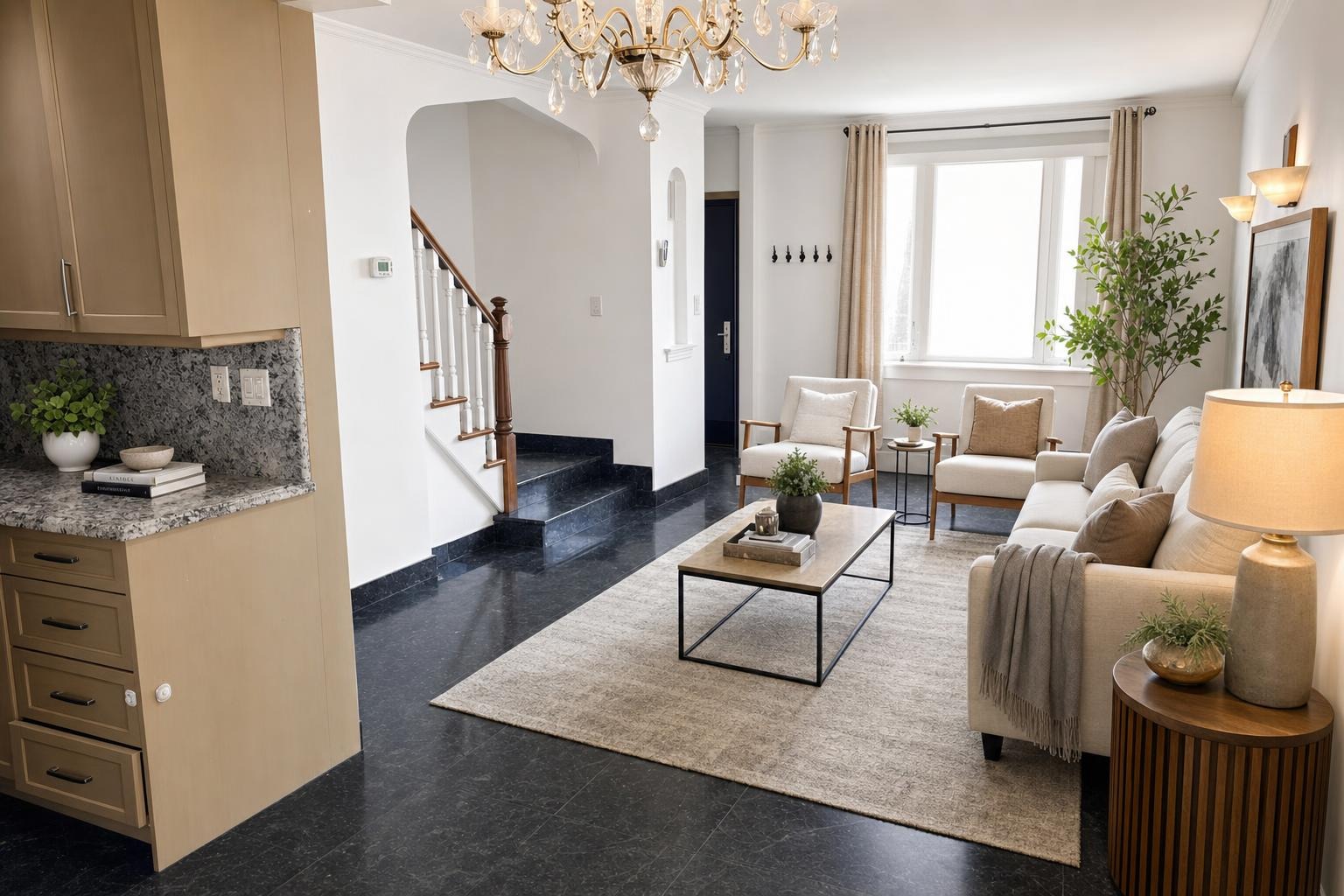
Look at the photo above again. There are four plants in it. "Remove the plant" is a coin flip. "Remove the tall plant" — the one behind the sofa is tall, but so is the one on the counter from a certain angle. "The plant on the left" depends on whose left, and half the time people mean the left of the room, not the left of the frame.
So you end up writing a sentence like a surveyor: "remove the large plant behind the sofa near the window on the right side of the frame, keep the small one on the round side table." By the time you have written that, you have spent more effort than the change is worth — and it is still ambiguous, because a photo can have two round side tables.
This is not an AI problem. It is a language problem. Every human on a job site solves it the same way: you walk over and point.
So point at it
Open any photo in your account, tap Change this photo, and the photo itself becomes tappable. Tap the plant. A card opens asking one question — what should happen here? — with four answers:
- Take this out — remove it from the photo.
- Change this — swap it for something different.
- Keep this — leave this part alone.
- More like this — do more of what is here.
Then, optionally, a few words: "the plant on the dresser." "This rug — something lighter." Tap up to eight spots, in any mix. Take out one plant, keep the fireplace, more art like that on the walls, change the coffee table. Each one is numbered on the photo, so you can see at a glance what you have asked for and remove any pin you change your mind about.
You can also tap the photo to peek back at your original while you work, and add a general note for the whole image alongside the pins. Pins and prose are not either/or.
What "Keep this" really means
One honest detail, because it changes how you use the feature. Every change is generated fresh from your original photo — the empty room you first uploaded. Nothing is being painted over the existing render. So Keep this is a strong instruction to put that thing back the way it was, not a lock on those pixels.
That distinction matters in both directions. It means "Keep this" is genuinely useful: marking the fireplace you liked is what stops it drifting into something else while the rug changes around it. And it means "Keep this" is not a promise of a pixel-identical crop. If you need a version exactly as it is, you already have it — nothing is ever overwritten, and every version stays in your account to flip between and download.
We would rather tell you that than let you find out. A tool that quietly implies pixel-locking is a tool that will disappoint you on the one photo you cared about most.
Why a tap beats a sentence
Here is what a pin actually does, in plain terms. Your taps are drawn onto a working copy of the photo as numbered rings, and that marked-up copy is read to identify what sits at the center of each ring — the specific object, described concretely. That description is what becomes the instruction.
So the request stops being "remove the plant" (a category, four matches) and becomes "remove the tall potted fig behind the cream sofa" (one object, one match). Naming a thing specifically is the single biggest difference between an instruction that lands and one that gets ignored — the same principle behind writing good staging instructions in the first place, and the reason your saved photo rules get verified rather than just hoped over.
Two things this deliberately does not do. The marked-up copy is never what gets edited — the rings exist to be read, not to be baked into your photo. And a pin does not add a second generation: the identification step is text, and your change is still one render.
What it costs: nothing extra
Pins are direction, not a product. They do not change the price of a change, and a change to a photo you already paid for is included — a credit buys the finished photo, not one attempt at it. Unlimited revisions cover every newly paid photo using the same original photo and tool, with no expiry. Switching to a different tool starts a new generation, priced before submission.
Keep two things separate, because they are different situations:
- Changing your mind is included. "Take that plant out, keep everything else" is a re-roll of a photo you own. Included.
- Getting it wrong is on us. If the result is actually broken — geometry off, a doorway invented, your saved rules ignored — that is the guarantee, not a re-roll: tell us within 24 hours, we re-run it free with your feedback, and if it still misses we credit the photo back.
Either way, a change takes about the same 30 seconds as the first render, for the same reasons the first one does.
Where this earns its keep
The seller has one note. Not "restage it" — one note. They hate the artwork over the mantel. Pin the art, "change this," send. About 30 seconds later there is a v2 with different art and an otherwise identical room, and the version they were fine with is still sitting there if they change their mind.
The room got over-furnished. Staging that adds four plants when you wanted one is a very common near-miss. Pin three of them "take this out," pin the one you like "keep this." That is a fifteen-second instruction that no sentence can express cleanly. If you find yourself doing it on every photo, save it as a photo rule once and stop repeating yourself.
One thing is wrong in an otherwise perfect frame. The best photo of the listing has one floating lamp, one odd reflection, one chair facing the wrong way. Before pins, the honest options were: live with it, or re-roll the whole room and hope the good parts survive. Now it is a tap and a word.
Questions people actually ask
Can I change just one part of an AI-staged photo?
Yes. In Stylst, open the photo, tap Change this photo, and tap the spots you want handled differently — up to eight of them. Each tap asks what should happen there (take this out, change this, keep this, more like this) and lets you name the object in a few words. You are pointing at the thing instead of describing where it sits, which is the part that usually goes wrong.
Why is pointing at a spot better than just typing what I want?
Because location is the hardest thing to say in words. A room can hold four plants, and "remove the plant" does not say which one; "on the left" depends on whose left. A tap carries the position exactly, so the instruction that gets applied names the specific object you meant instead of a category of object that appears several times in the frame.
Does marking spots on a photo cost extra credits?
No. Pins are direction, not a product — they never change the price of a change. Re-rolls of a photo you already paid for are included, because a credit buys the finished photo rather than one attempt at it. Unlimited revisions cover every newly paid photo using the same original photo and tool, with no expiry. Switching tools starts a new generation, priced before submission.
If I mark something Keep this, will it stay pixel-for-pixel identical?
No, and it is worth being clear about why. Every change is generated fresh from your original photo, so Keep this is a strong instruction to put that thing back the way it was — not a lock on those pixels. It is what stops the fireplace you liked from drifting while the rug changes. If you need a version kept exactly, you already have it: nothing is overwritten, and every version stays in your account.
Do I still have to type anything if I mark spots?
You do not have to, but a few words per pin help a lot. The pin says where and what kind of change; naming the object — "the plant on the dresser", "this rug, something lighter" — removes the last bit of guesswork. You can also add a general note for the whole photo alongside the pins, and both are saved with the result so you can see what you asked for.
The bottom line
Most AI photo tools give you one text box and one roll of the dice. The text box is fine for the whole photo and useless for one object in it, which is why "almost right" has been such a dead end: the note you have is precise, and the only tool you had was vague.
Pointing closes that gap. Tap the thing, say what should happen to it, keep every version you have. Try it on a photo you have already made — pick the one detail that has been bugging you and see what happens when you stop describing it and just point.